View and Edit Internships
In NAFTrack, you would need to navigate to the Manage Internships section using the toolbar, and then click View Internships.


At this point, you will see a list of all active internships for the academy for the current graduation year. You can sort the list by clicking on any column header or use the search box feature, on the top right corner of the table, to find a specific student.
You can add internships from other graduating years using the Graduation Years filter. Click the Filter Internships button to see filters reflected in the list.
Click the optional boxes labeled Include Completed Internships and/or Include Inactive Internships to see internships that have been finished and have a completed assessment OR assessment in the system that are inactive, respectively, in the list. Click the Filter Internships button to see filters reflected in the list.

This list can be exported to PDF or Excel by clicking the Export to PDF or Export to Excel buttons.
Click Edit to edit any internships in the list.


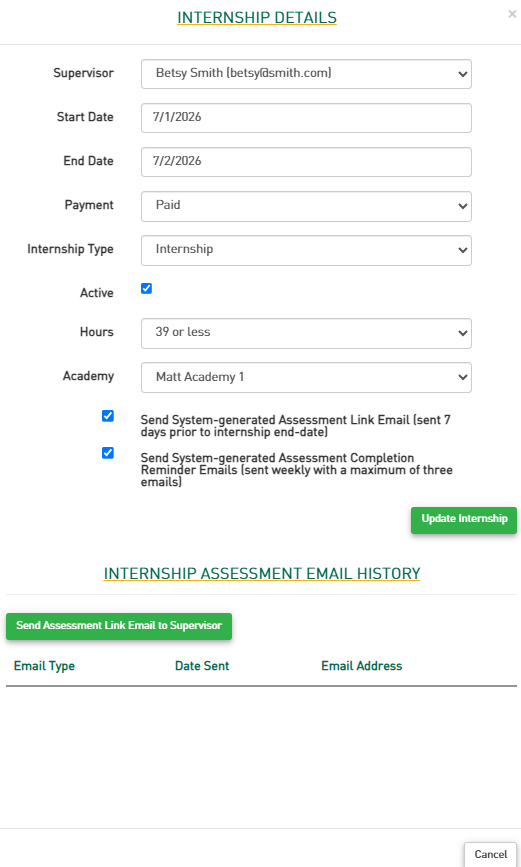
If you click the Edit button on an internship, you will be able to make changes to:
the supervisor (supervisors must be already added to NAFTrack)
the start and end dates
the paid and active status
the internship type
how many hours of participation
the academy
supervisor email preferences
Use the Send Assessment Link Email to Supervisor when a supervisor reports not having received the assessment link. Be sure to tell them to check their spam folder!
Click Update Internship to save these changes